
Kia EV2: Digital Key 2 : (if equipped) / Digital Key 2 (Smartphone)
How to register Digital Key 2 (Smartphone)
The advanced Kia Digital Key 2 system is engineered to work exclusively with compatible smartphones that support this innovative function, where the underlying technology and protocols are seamlessly provided directly by your smartphone manufacturer. Please note that certain features and integration levels may vary or occasionally remain restricted depending on whether your specific Kia EV2 vehicle model is provisioned with the corresponding connected services package. When an over-the-air update or background synchronization is actively updating the digital key controller within your Kia EV2, the electronic smart key functions might experience brief, temporary interruptions; should this occur, you can instantly override and operate the vehicle's central locking systems using the physical door lock and unlock buttons located on your standard smart key fob.
Smartphone Set Up
To successfully unlock and experience the full convenience of the Digital Key 2 (Smartphone) capability on your Kia EV2, begin by downloading and installing either the official Kia App or the comprehensive Kia Connect app onto your mobile device, where you must register your personal user profile and complete the necessary service subscription steps. For more granular configuration instructions and deep feature overviews, you can instantly access the interactive web manual by scanning the QR code conveniently located within the vehicle's infotainment system quick reference guide.
Smartphone Registration
| Interface Display | Configuration Steps |
|---|---|
|
|
-
Turn the vehicle on with the Smart key and make sure to keep the smart key inside the vehicle during digital key registration.
-
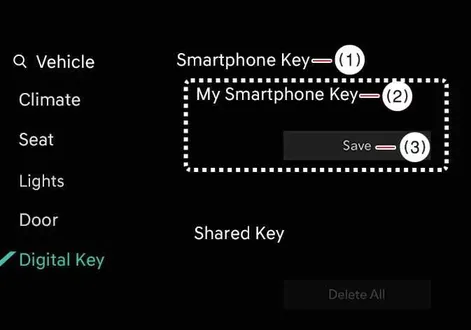
After pressing Digital Key Settings > Register on Kia App or Kia Connect app, place the backside of the smartphone on the In-vehicle authentication pad (wireless charging pad).
Charging Pad Location Pad Component 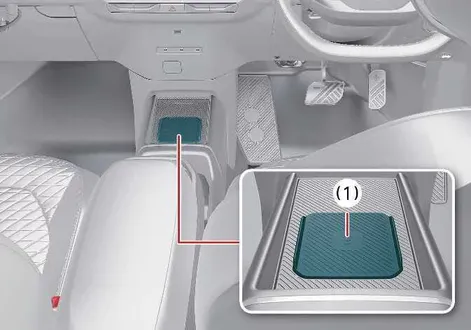
-
In-vehicle authentication pad (wireless charging pad)
-
As long as the device is supported from additional vehicle services, the Digital Key can be registered wirelessly.
-
-
Select Save menu on the instrument cluster or on the infotainment system screen. The saving process will begin automatically.
-
When the digital key (smartphone) is saved, a message will appear on the instrument cluster or the infotainment system screen.
-
Remove the smartphone from the pad and complete the saving process under the guidance of the smartphone screen.
TIP
The infotainment system may change after software updates. For more information, refer to the user's manual provided in the infotainment system and the quick reference guide.
Vehicle
When there is a digital key (smartphone) already saved in the vehicle, Delete All will be displayed on the Smartphone Key menu screen of the infotainment system and Delete will be displayed on the My Smartphone Key screen. If you want to save a digital key again, How to delete Digital Key (Smartphone) .
Smartphone
The digital key cannot be saved again whilst the vehicle’s digital key is saved in the owner's smartphone. Save the digital key after deleting the digital key from the Kia App or Kia Connect app.
During the digital key 2 saving process, the process will cancel when:
The smartphone is removed from the in-vehicle authentication pad (wireless charging pad)
Changing the infotainment system or instrument cluster screen
The vehicle is turned off
The gear is shifted
There is no smart key (saving process will not begin)
As the In-vehicle authentication pad (wireless charging pad) may not work smoothly depending on the internal structure of the smartphones, the digital key may not be registered. In this case, register the procedure by moving the smartphone to the left or right of the in-vehicle authentication pad (wireless charging pad).
UWB (Ultra Wide Band) means ultra-wideband wireless communication technology. NFC (Near Field Communication) means short-range wireless communication.
How to Use the Digital Key 2 (Smartphone)
Smartphone Touch Control
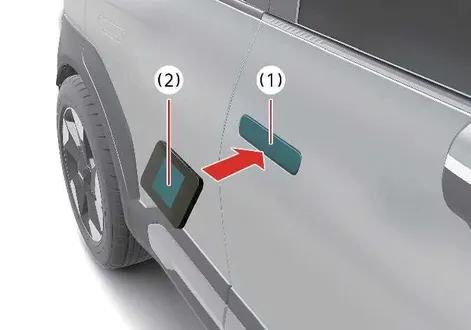
The driver can lock and unlock the door by touching the smartphone on the door handle without activating the Kia App or Kia Connect app. Also, the vehicle can be started by placing the smartphone on the in-vehicle authentication pad (wireless charging pad).
| Authentication Components | Description |
|---|---|
|
|
You can check the location of the NFC antenna on your Samsung smartphone in the Settings app > Connections > NFC and contactless payments. The Apple iPhone's NFC antenna is located at the top of the back of the device, and the Apple Watch's NFC antenna is located in the centre of the screen. Make sure that the location of the smartphone's NFC antenna touches the in-vehicle authentication pad (wireless charging pad). However, as the location of the smartphone's NFC antenna may be different by smartphone model, contact the smartphone manufacturer for more details.
Locking/Unlocking the doors
-
If the driver touches the smartphone NFC antenna to the driver's or passenger's door handle authentication pad for more than 2 seconds, the door will lock or unlock.
-
After unlocking the doors, the doors will automatically re-lock after 30 seconds unless a door is opened.
-
If the smartphone digital key does not operate, move the smartphone more than 0.1 m (4 inches) from the door handle authentication pad and try it again.
For smartphones without UWB support:
To lock or unlock the doors with a registered smartphone, contact the NFC antenna on the back of the smartphone with the authentication pad of the driver's or passenger's outside door handle for about 2 seconds.
For smartphones with UWB support:
-
To lock or unlock the doors, carry your smartphone and touch the door handle lock/unlock sensor (carved area) on the outside door handle.
-
If Approach Unlock is enabled, the doors will be automatically unlocked when you approach the front seat’s outside door handle with your smartphone.
WARNING
When you carry the smartphone supported by UWB and stay near the vehicle for about a few minutes, the door may not unlock automatically.
If you put the smartphone in a back pocket or bag, it may be blocked by the body part, which limits the Bluetooth connection and cause operation delay when locking/unlocking doors or starting the vehicle.
If a tinting film containing metal components is applied, the digital key may not function properly.
NOTE
Note that the door will unlock and a beep sounds when using the Digital Key 2 if any of the following occur:
When the Smart Key is in the vehicle
The
EVbutton is inPOWER ONor DRIVEREADYpositionAttempting to lock the door when more than one door, or bonnet, tailgate is opened
If a tinting film containing metal substances is applied to the digital key, it may not function properly.
Starting the vehicle
After placing your registered smartphone on the in-vehicle authentication pad (wireless charging pad), depress the brake pedal and press the EV button.
-
Once the vehicle is started, you can remove the smartphone from the pad.
For more details, refer toEV button .
For smartphones without UWB support:
-
Place the NFC antenna of the smartphone on the centre of the indoor authentication pad (wireless charging pad), press the brake pedal, and then press the start button to start the vehicle.
-
After starting the vehicle, you can remove the smartphone from the indoor authentication pad (wireless charging pad).
-
Some smartphones may not have smooth NFC communication due to their internal structure. In such cases, move the smartphone to the right or left of the indoor authentication pad (wireless charging pad) to operate it.
For smartphones with UWB support:
-
Carry the smartphone inside the vehicle, press the brake pedal, and then press the start button to start the vehicle.
-
To start the vehicle remotely, use the Kia app or an app provided by the smartphone manufacturer and press the remote start button. The vehicle will start and the hazard warning lights will flash.
-
To turn off the vehicle, press the remote start button again.
WARNING
The vehicle can be started when the registered smartphone is placed on the in-vehicle authentication pad (wireless charging pad). Therefore, do not leave unsupervised children or people who are not aware of the system since it can result in serious injury or death. In addition, always have the registered smartphone with you to prevent vehicle theft when leaving the vehicle.
NOTE
The operation time of Digital Key 2 for shared user may extend during first time use.
Approach your Digital Key 2 (smartphone) on the authentication pad located in the outside door handle until the vehicle door lock/unlock function operates.
If the inner authentication pad is used for the first time, 1st vehicle start function may not operate.
Remote Smart Parking Assist (RSPA) operation
Remote Smart Parking Assist (RSPA) can be operated near the vehicle via the Kia App or Kia Connect app on a UWB-supported smartphone registered with Digital Key, even without the smart key.
NOTE
For detailed instructions, refer to the guide in the Kia App or Kia Connect app or the “Remote Smart Parking Assist” section
RSPA can only be operated with a Digital Key on vehicles and smartphones that support UWB.
RSPA with Digital Key can be operated only via the Kia App or Kia Connect app. This feature is not available in apps provided by smartphone manufacturers.
To allow shared users to operate RSPA, both the Digital Key and the vehicle must be shared via the Kia App or Kia Connect app.
RSPA is available only with Digital Keys that have Full or Valet access rights.
Check the Bluetooth connection between the vehicle and smartphone before using RSPA.
Opening the tailgate
For smartphones with UWB support:
-
When the vehicle is locked, to open the tailgate, press the tailgate open button, carrying a smartphone.
-
When Smart tailgate is selected, the tailgate automatically opens when you approach the detecting area behind the tailgate for more than 3 seconds, carrying a smartphone with Digital Key 2 registered.
WARNING
The vehicle can be started when the registered smartphone is placed on the in-vehicle authentication pad (wireless charging pad). Therefore, do not leave unsupervised children or people who are not aware of the system since it can result in serious injury or death. In addition, always have the registered smartphone with you to prevent vehicle theft when leaving the vehicle.
NOTE
The operation time of Digital Key 2 for shared user may extend during first time use.
Approach your Digital Key 2 (smartphone) on the authentication pad located in the outside door handle until the vehicle door lock/unlock function operates.
If the inner authentication pad is used for the first time, 1st vehicle start function may not operate.
How to delete Digital Key (Smartphone)
Turn the vehicle on with the smart key and make sure to keep the smart key inside the vehicle during the digital key (smartphone) deleting process.
-
Delete All digital Key (Smartphone)
Settings Menu Options 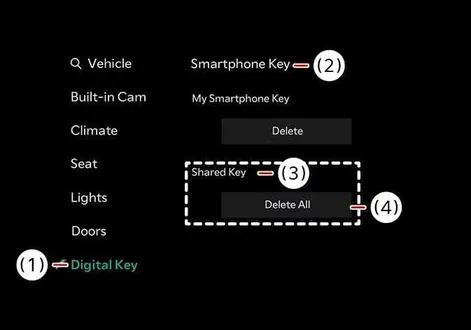
-
Digital key
-
Smartphone key
-
Shared keys
-
Delete all
With the vehicle on, touch Settings > Vehicle > Digital key > Smartphone key > Delete all on the infotainment system.
-
The key of owner and the shared user will be deleted.
-
If there is no registered key, the menu cannot be selected.
-
-
Delete My Smartphone Key
Settings Menu Options 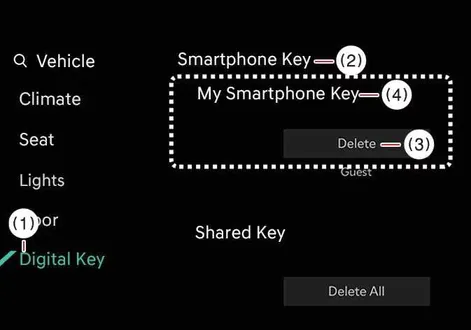
-
Digital key
-
Smartphone key
-
My Smartphone key
-
Delete
If the owner's smartphone has been changed, the new smartphone can be registered after only deleting the previous Digital Key 2 (Smartphone).
With the vehicle on, touch Settings > Vehicle > Digital key > Smartphone Key > My Smartphone key > Delete on the infotainment system.
-
After deleting My Smartphone key, the new smartphone can be registered.
-
Deleting the shared keys
Select Settings > Vehicle > Digital key > Smartphone Key > Shared Keys > [Group] > Delete on the infotainment system.
Those digital keys other than the My Smartphone key (smartphone) are classified by [Group] and displayed as ‘Shared Key.’
If the account logged in the smartphone is the same, it is displayed as the same [Group]. You can delete the Shared Key by the unit of [Group].
NOTE
If digital key (smartphone) is deleted, the digital key saved in the smartphone is also deleted.
If digital key (smartphone) is deleted on the smartphone, the digital key saved in the vehicle is also deleted.
Digital key (smartphone) is not deleted even if Kia App or Kia Connect app is deleted on the smartphone.
Digital key can be activated or deactivated within the Kia App or Kia Connect app provided from the smartphone manufacturer.
TIP
The infotainment system may change after software updates. For more information, refer to the user's manual provided in the infotainment system and the quick reference guide.
 Digital Key 2 : (if equipped)
Modern connectivity meets ultimate convenience in the Kia EV2 through the innovative Kia Digital Key 2 system, which empowers the driver to seamlessly lock or unlock the driver and passenger doors, secure the tailgate, and power up the vehicle using a compatible smartphone or dedicated card key, entirely eliminating the need to carry a traditional physical smart key...
 Digital Key 2 (Card Key)
How to register Digital Key 2 (Card Key)
To integrate and fully leverage the advanced Digital Key 2 capabilities for your Kia EV2, you can easily register a compatible NFC card key directly within your vehicle's onboard system by following the structured registration workflow below...
Other information:
Chevrolet Silverado 2019-2026 Owners Manual: Towing the Vehicle
Caution Incorrectly towing a disabled vehicle may cause damage. The damage would not be covered by the vehicle warranty. Do not lash or hook to suspension components. Use the proper straps around the tires to secure the vehicle. Do not drag a locked wheel/tire...
Chevrolet Silverado 2019-2026 Owners Manual: Tire Rotation
Tires should be rotated every 12 000 km (7,500 mi). See Maintenance Schedule. Tires are rotated to achieve a more uniform wear for all tires. The first rotation is the most important. Anytime unusual wear is noticed, rotate the tires as soon as possible, check for proper tire inflation pressure, and check for damaged tires or wheels...
Categories
- Manuals Home
- 4th Generation Silverado Owners Manual
- 4th Generation Silverado Service Manual
- Instrument Panel Overview
- Steering Column Lock
- Instrument Panel Fuse Block (Left)
- New on site
- Most important about car
Blind Spot Mirrors
If equipped, there is a small convex mirror built into the upper and outer corner of the driver outside mirror. It can show objects that may be in the vehicle's blind zone.
Driving with the Blind Spot Mirror
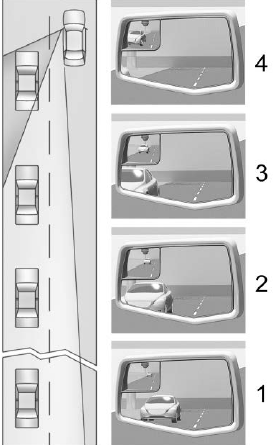
Actual Mirror View
When the approaching vehicle is a long distance away, the image in the main mirror is small and near the inboard edge of the mirror. As the vehicle gets closer, the image in the main mirror gets larger and moves outboard. As the vehicle enters the blind zone, the image transitions from the main mirror to the blind spot mirror. When the vehicle is in the blind zone, the image only appears in the blind spot mirror.